Product tour
See CampusConnect through every role
Real screens from the web app and the mobile apps. Pick a role to walk through a typical day, or follow one student's journey through every module.
Your whole school, on one screen
Principals, administrators and accountants see attendance, fees, dues, admissions and what needs attention the moment they log in — and act on it in a click.
Less time chasing numbers across registers and spreadsheets: today's picture is already on the dashboard.
Step 1
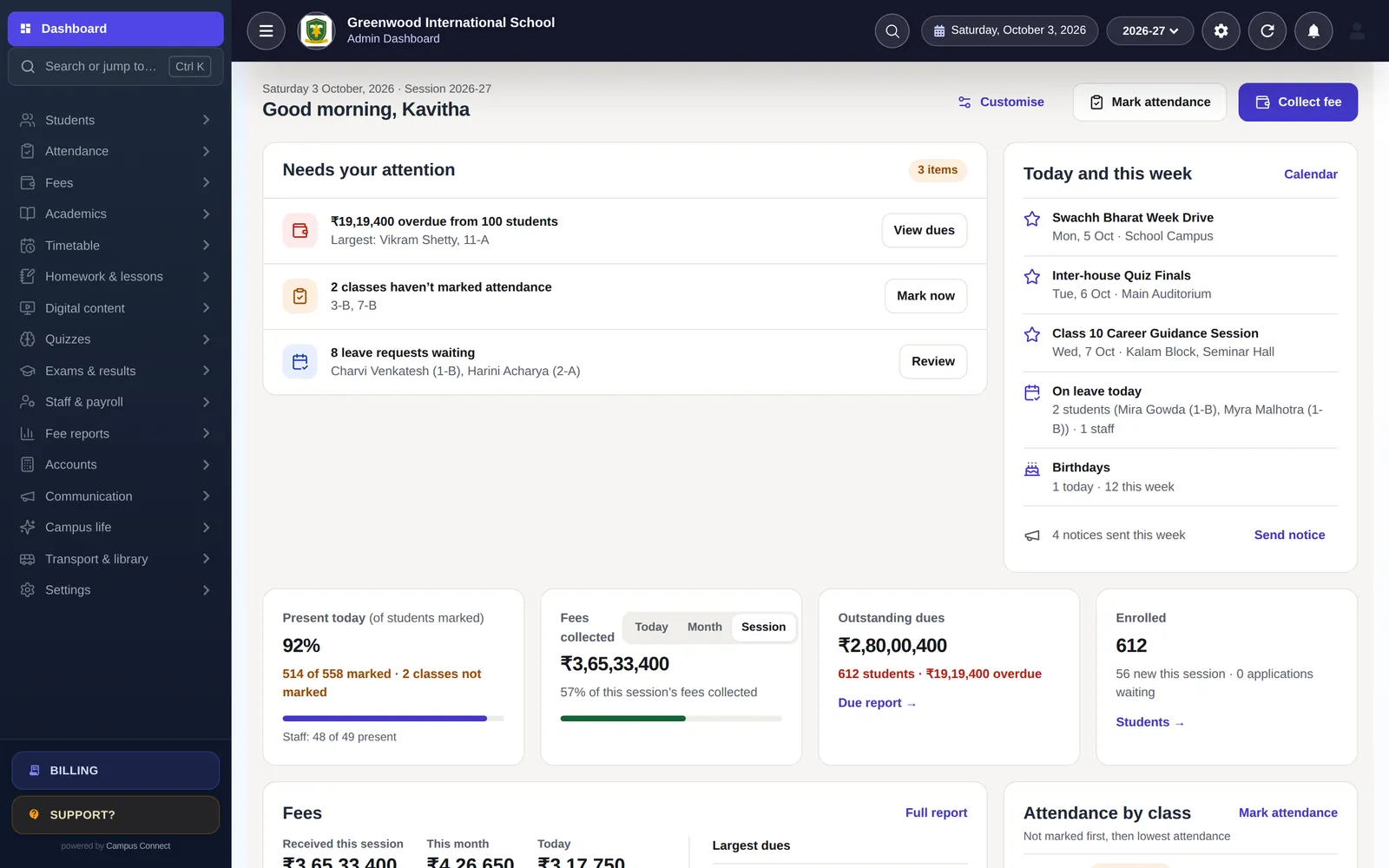
Start the day on the dashboard
Present today, fees collected, outstanding dues, enrolment, birthdays and leave — plus a short list of things that need you.
Step 2
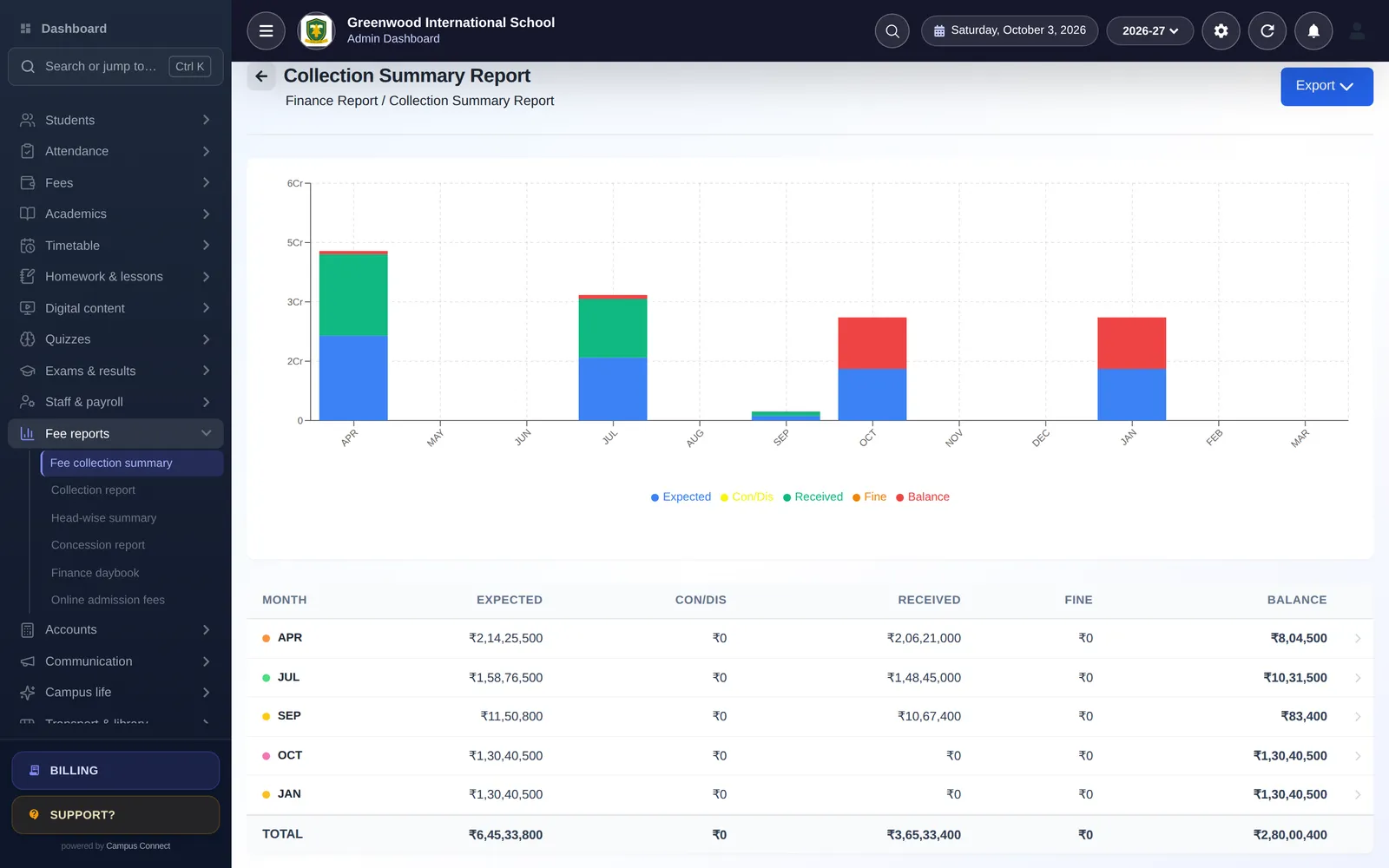
Follow the money
Collection summary, head-wise and concession reports, daybook and due reports — all updated as fees are paid at the counter or online.
Step 3
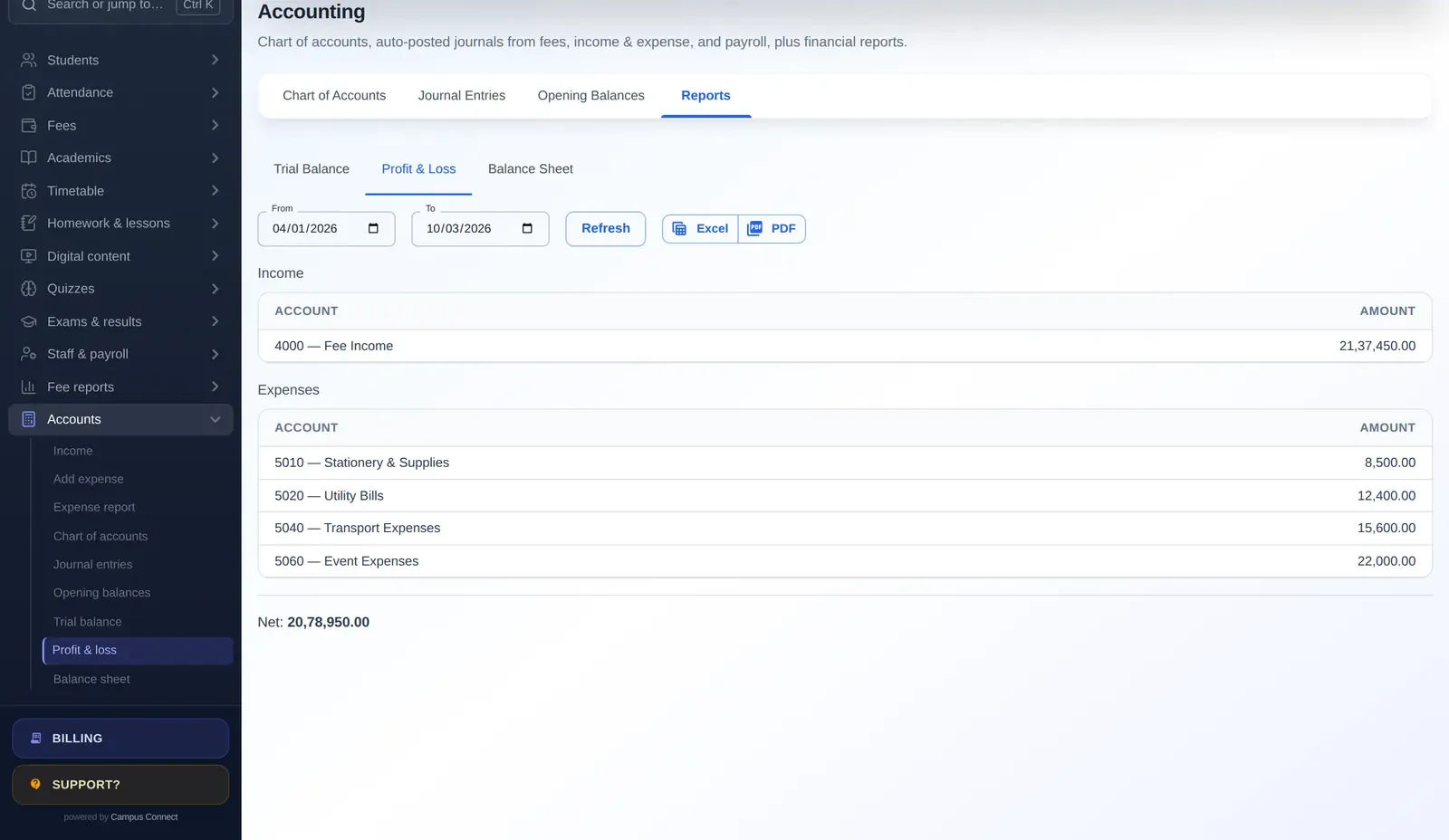
Keep proper books
Fees, income, expenses and payroll post to a double-entry ledger, so your accountant gets real financial statements.
Step 4
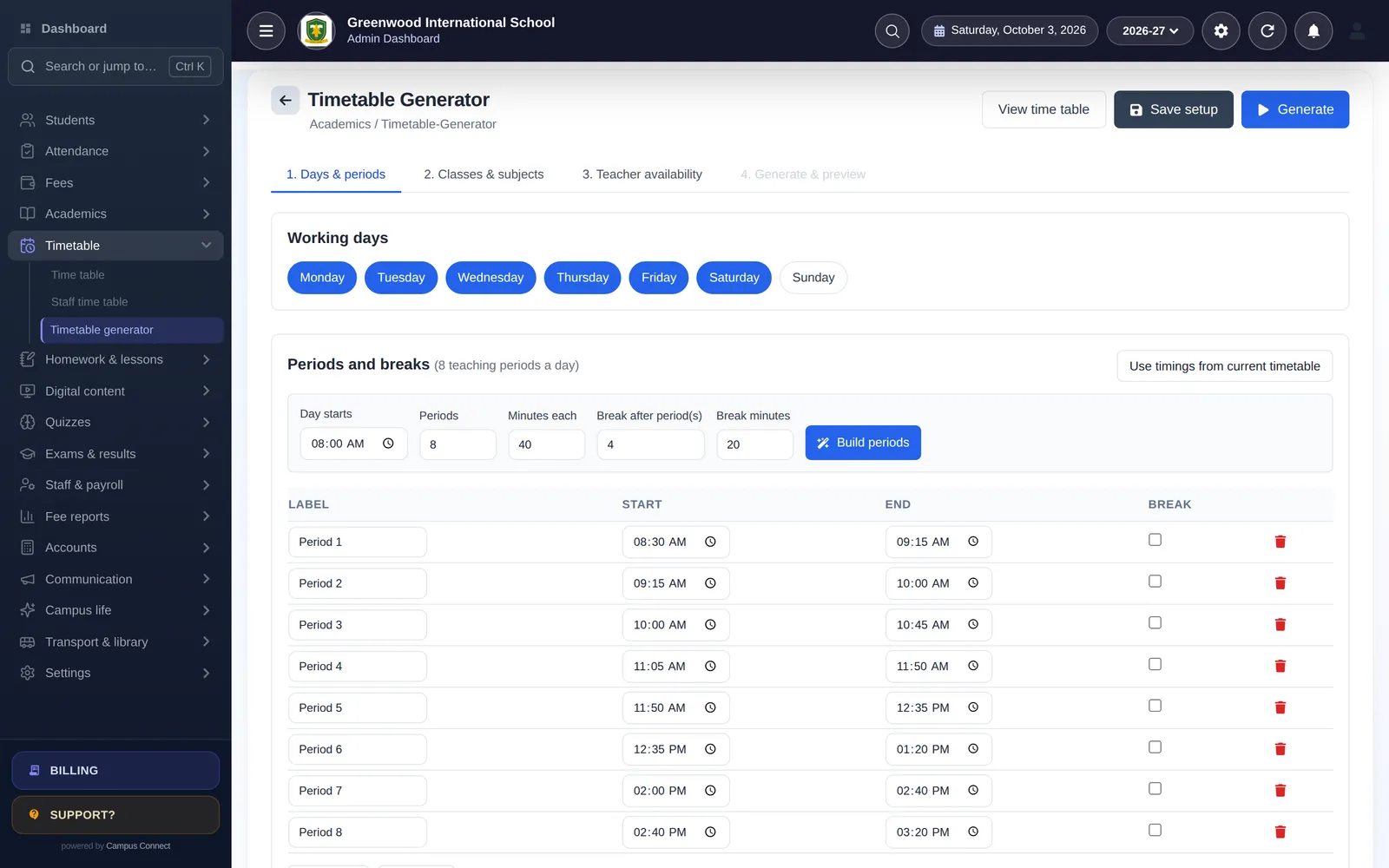
Build the timetable automatically
Set days, periods, breaks and teacher availability; the generator produces a clash-free timetable you can preview and publish.
Classroom admin in minutes, on web or phone
Teachers mark attendance, set homework, enter marks and run quizzes from the web app or the CampusConnect Pro app — without waiting to reach a computer.
Attendance becomes a quick tap-through, and ready-made quizzes replace setting and marking practice papers by hand.
Step 1
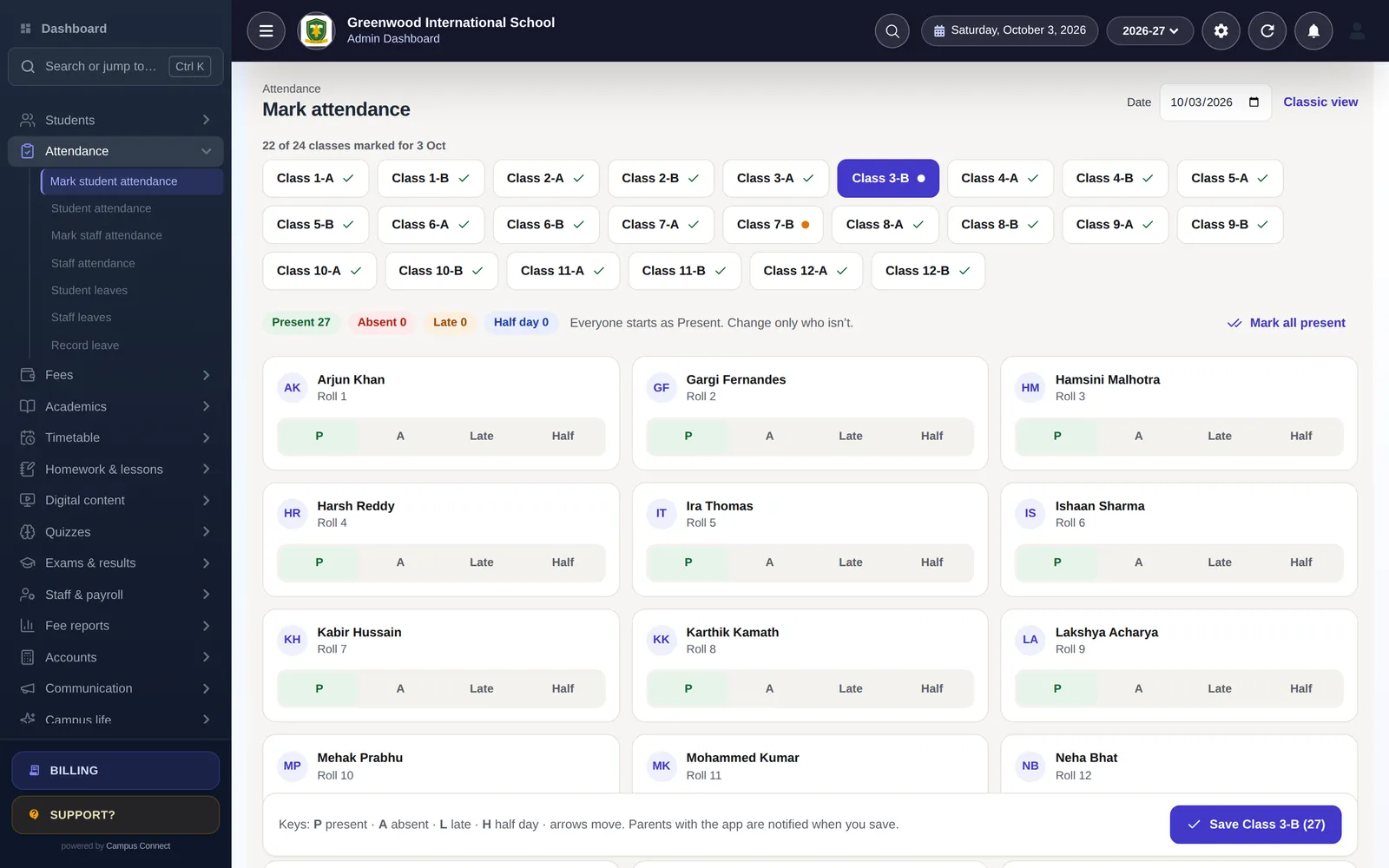
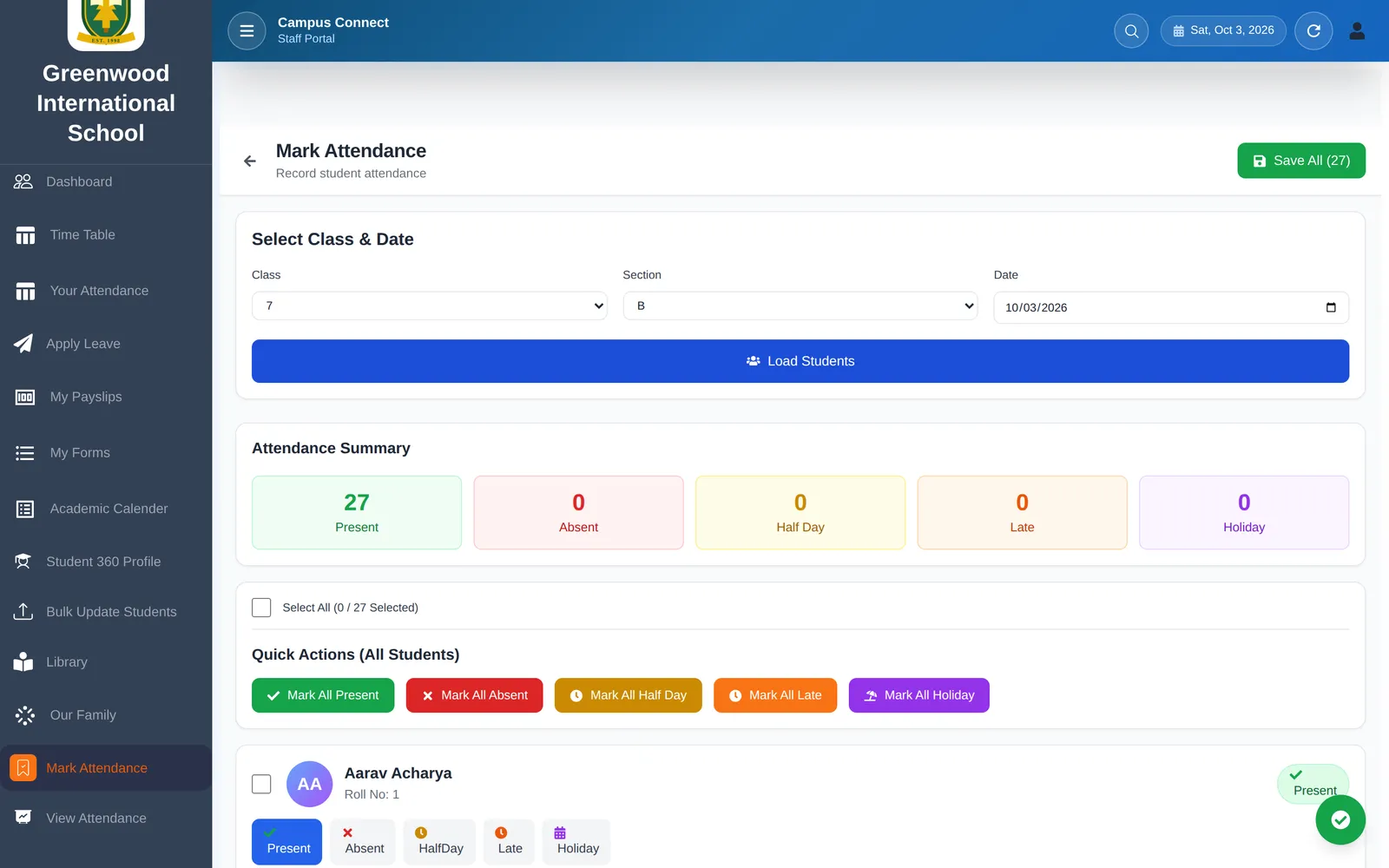
Mark attendance fast
Every student is a card with Present, Absent, Late and Half-day; keyboard shortcuts on the web, quick taps on the phone. Parents with the app are notified when you save.
Step 2
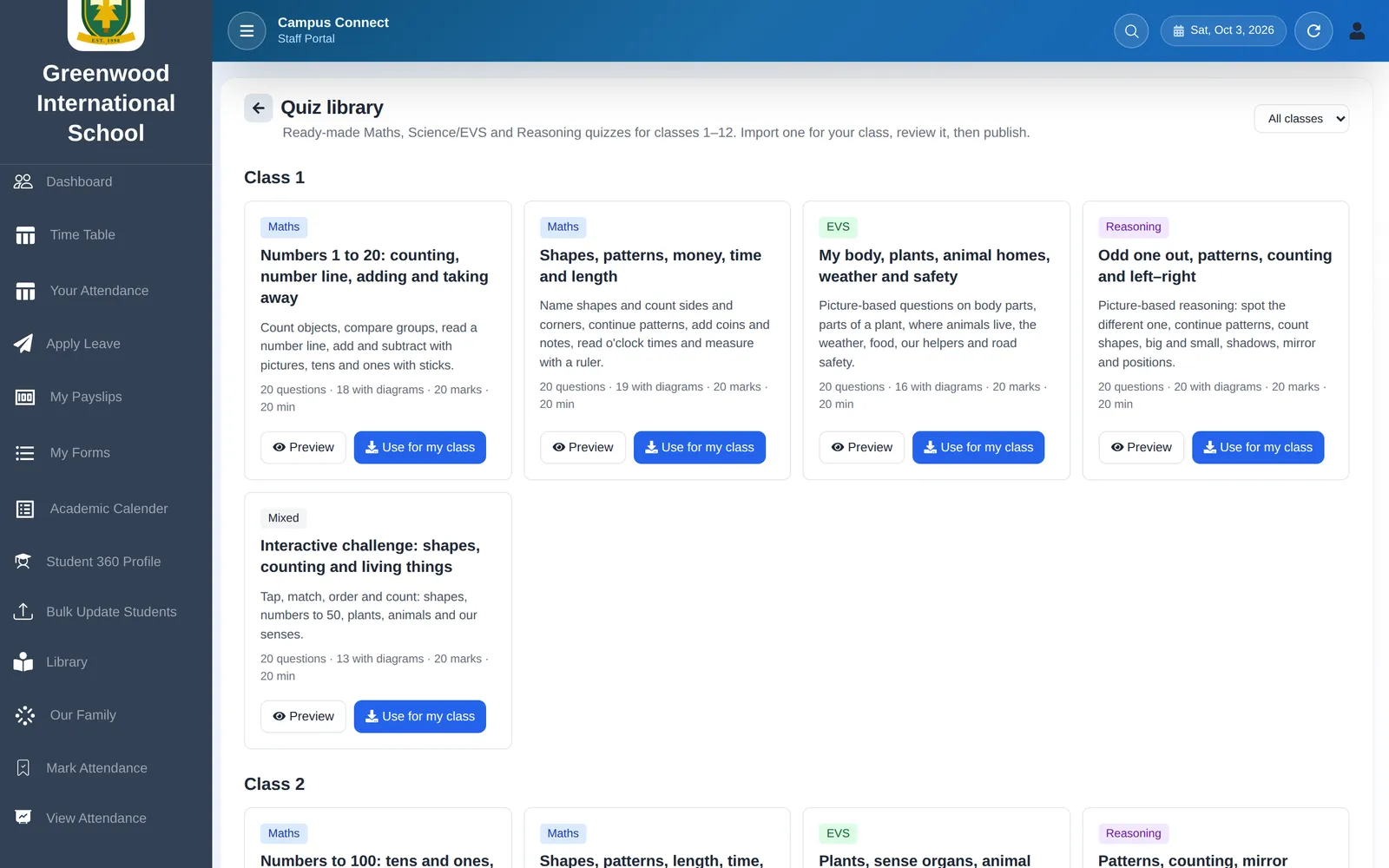
Pick a ready-made quiz
Browse 60 diagram-based sets for classes 1–12, preview them, import one as a draft for your class and schedule it.
Step 3
Parent meetings without the queue
See upcoming parent–teacher meetings with their topics, mark attended or no-show, and keep a private note for next time.
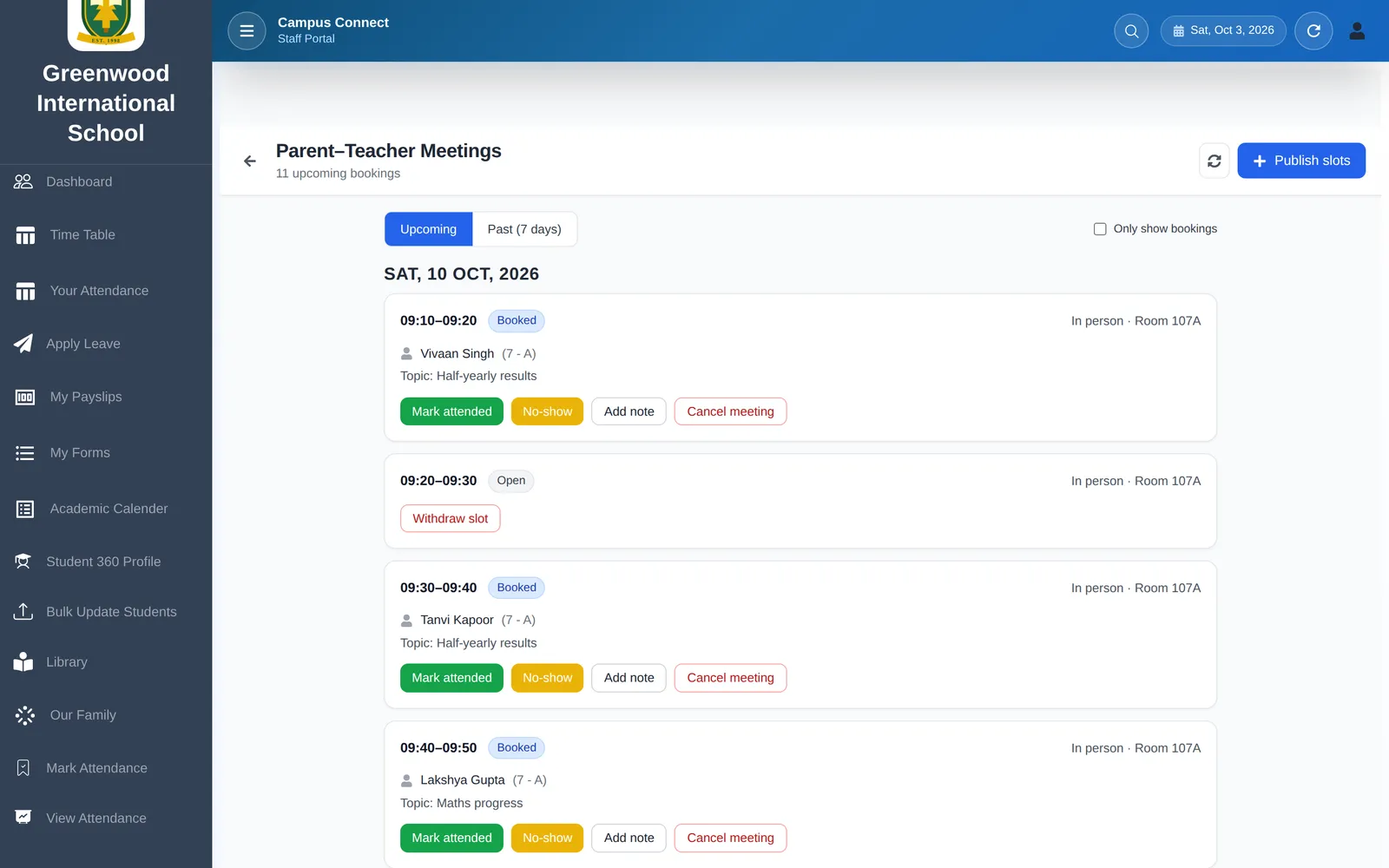
Step 4
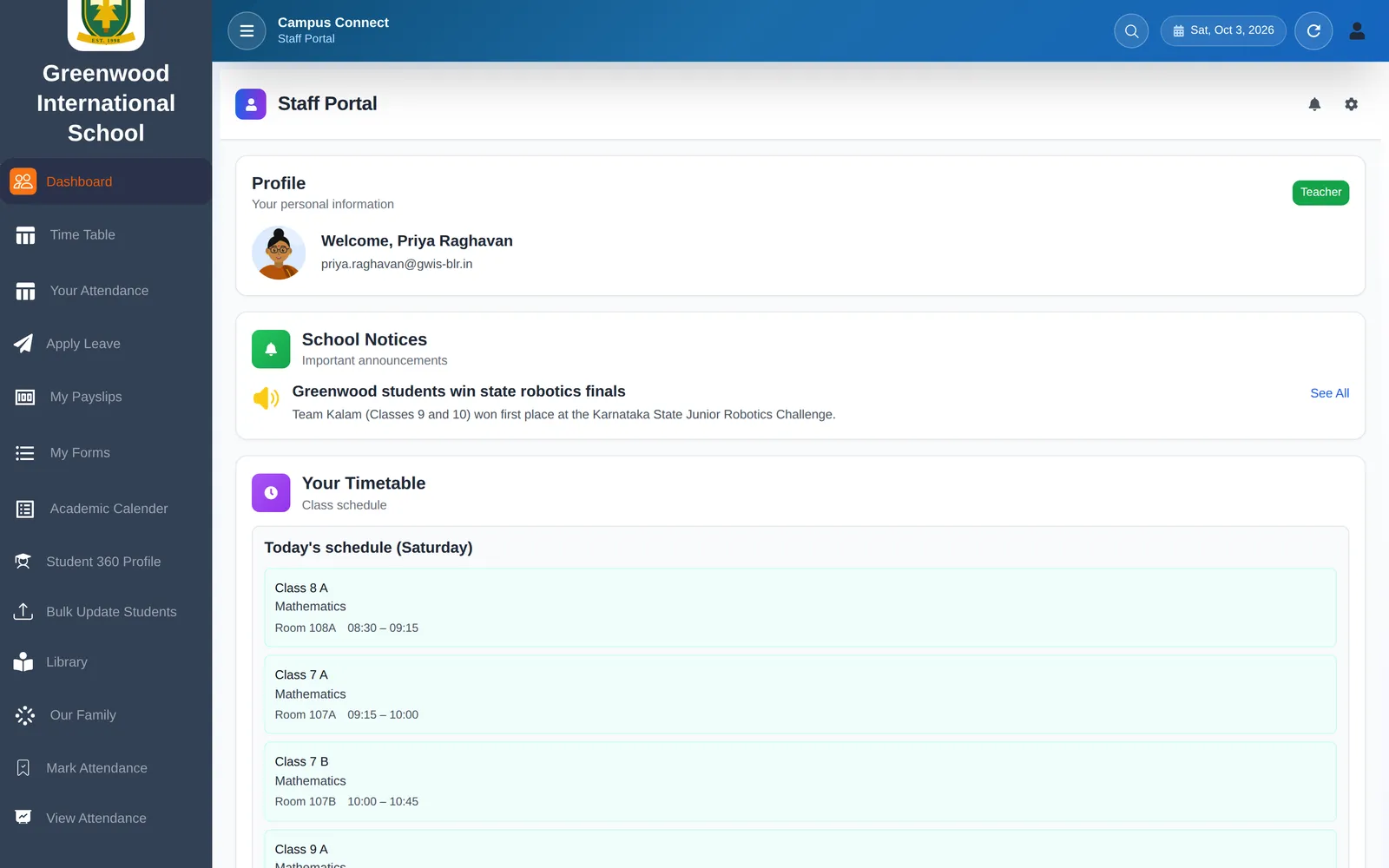
Your day at a glance
Your profile, school notices and today's teaching schedule — on the web or in CampusConnect Pro.
Everything about the school day, in one app
Attendance, homework, fees and receipts, results, quizzes, notices, meetings and the live school bus — on Android and iOS.
Fewer calls to the school office: answers parents used to ask for are already in the app.
Step 1
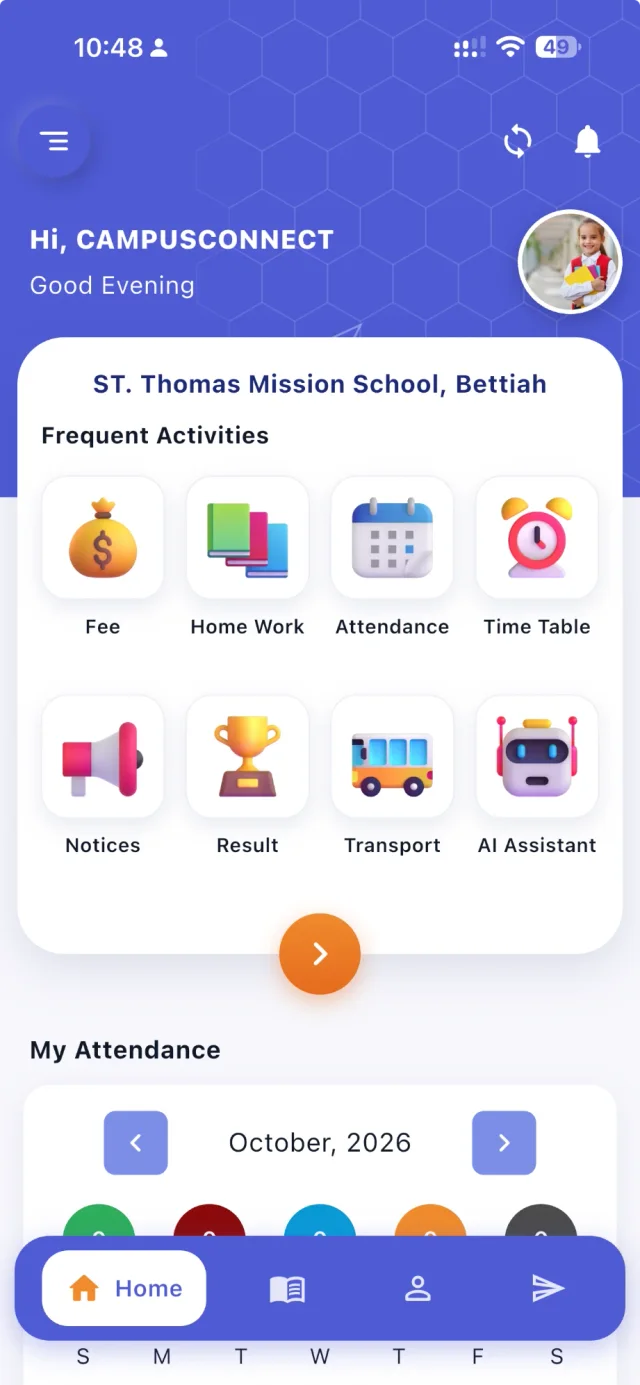
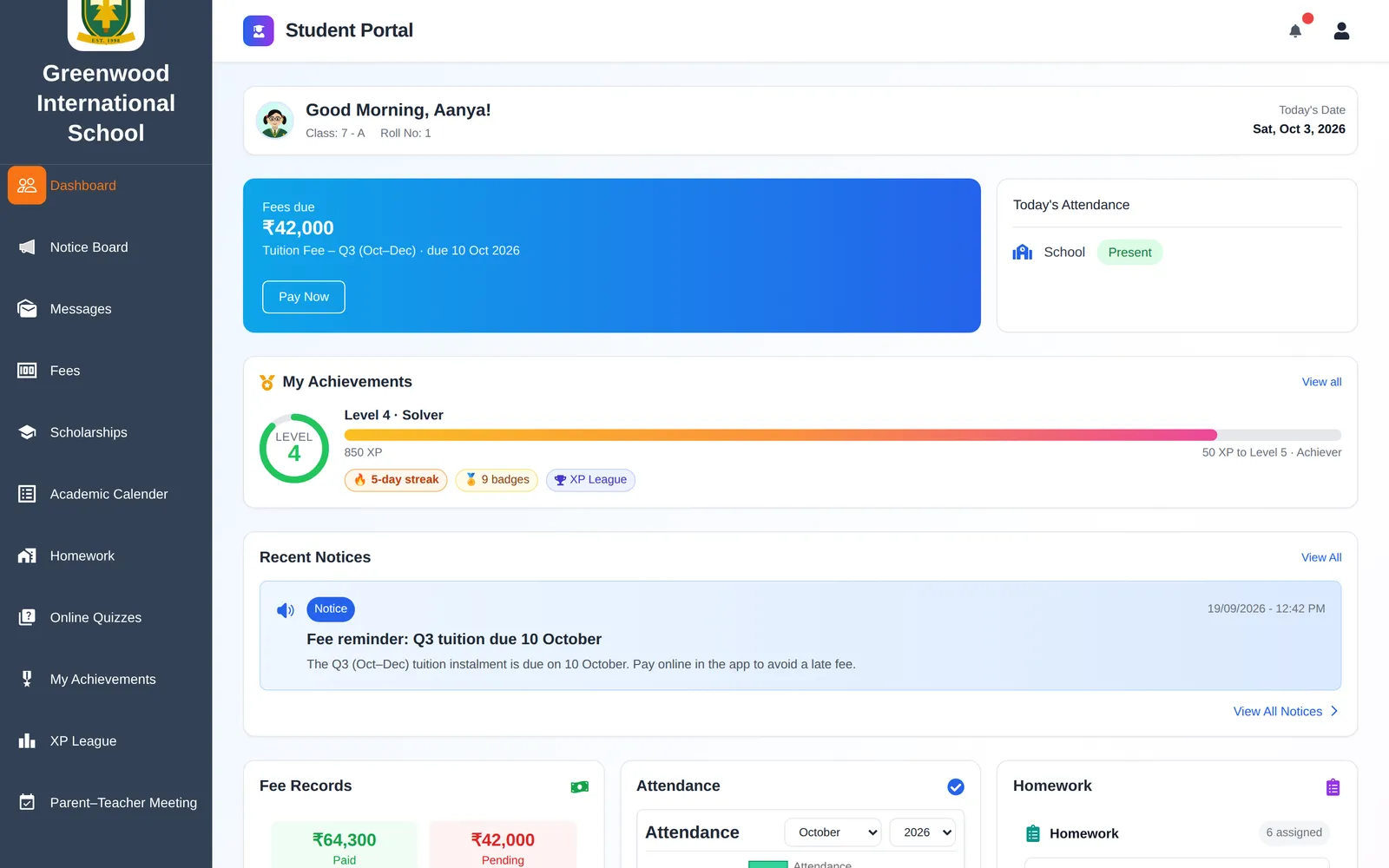
The child's day at a glance
Fee, homework, attendance, timetable, notices, results, transport and the AI assistant one tap from the home screen — with the month's attendance below.
Step 2
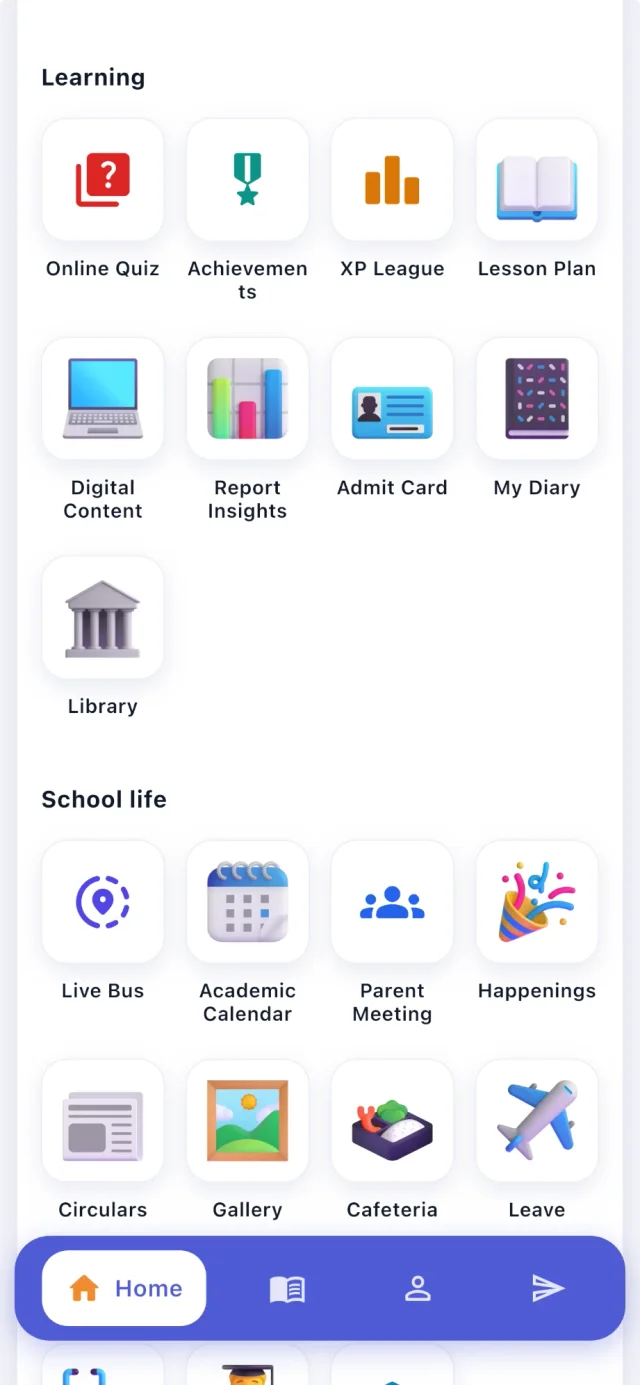
Learning and school life, organised
Online quizzes, achievements and the XP league sit next to lesson plans, digital content, report insights and the admit card; school life covers the live bus, calendar, parent meetings, circulars, gallery, cafeteria and leave.
Step 3
Rewards that keep them coming back
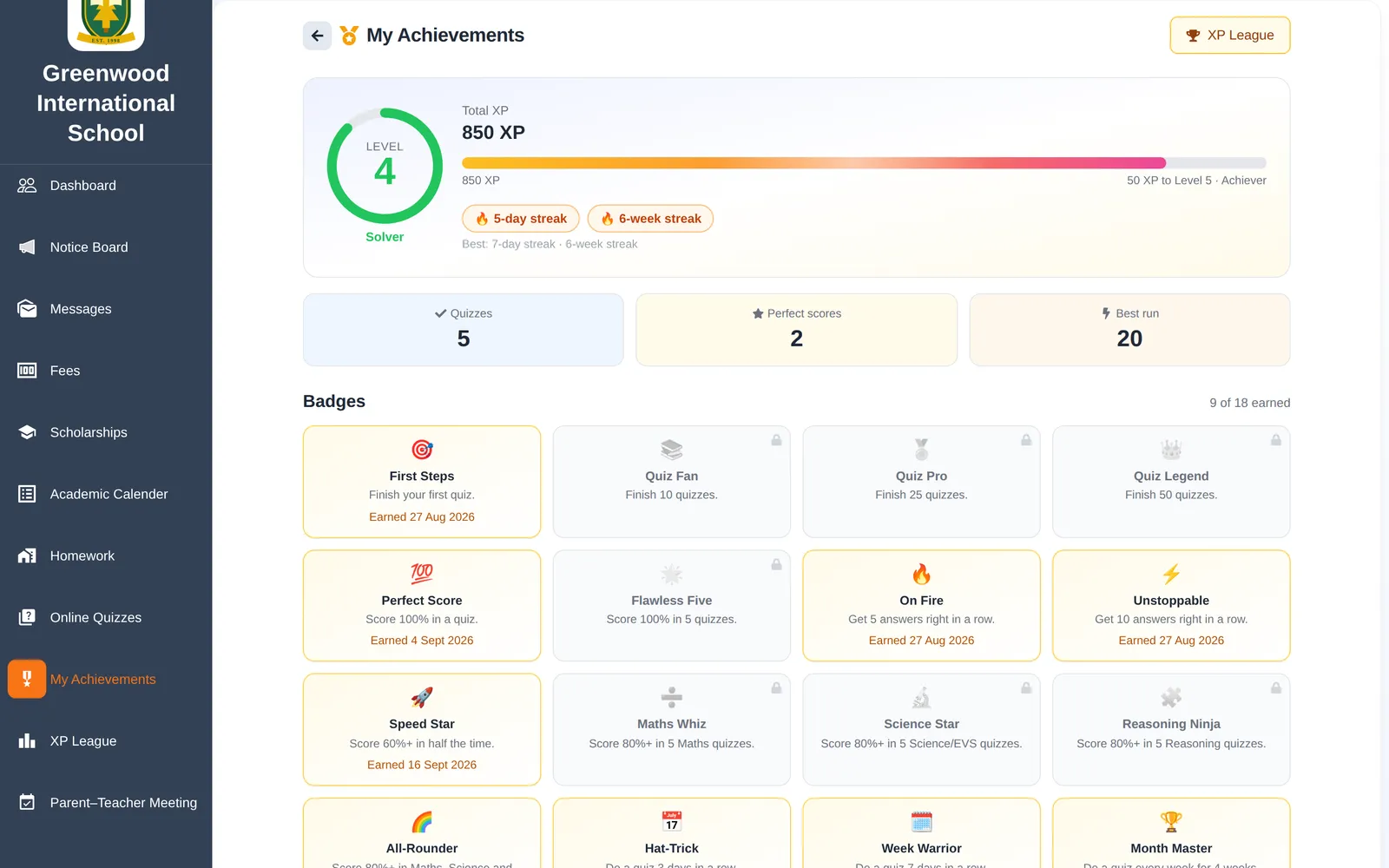
XP for every quiz, levels, 18 badges, streaks, a class league and a fair section-wise House Cup — set up by the school in Quiz league.
Step 4
Fees and meetings in a few taps
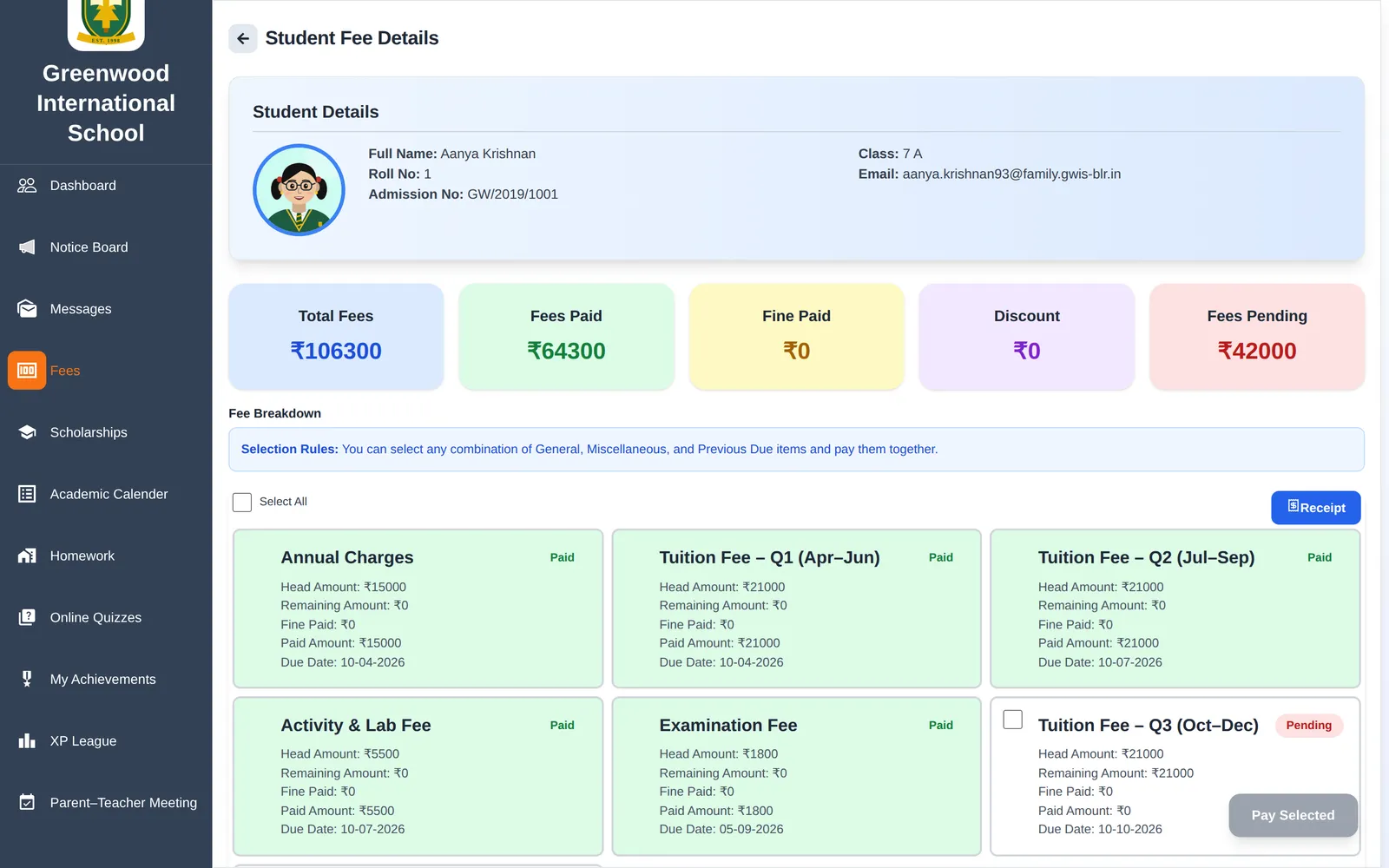
Every fee head with paid and pending status and Pay Now; parent–teacher meeting slots booked with each teacher.
“Where's the bus?” — answered
Drivers sign in with the school code, their mobile number and an OTP, start the trip, and the bus appears live for parents on that route and for the school.
Fewer “where is the bus?” calls to drivers and the office during pick-up and drop.
Step 1
Start the trip from the phone
No separate GPS device: the CampusConnect app on the driver's phone shares the location while a trip is running.
Live · Route 3 (example)Bus is on the way
Driver started the morning trip · updated just now
Step 2
The school sees every bus
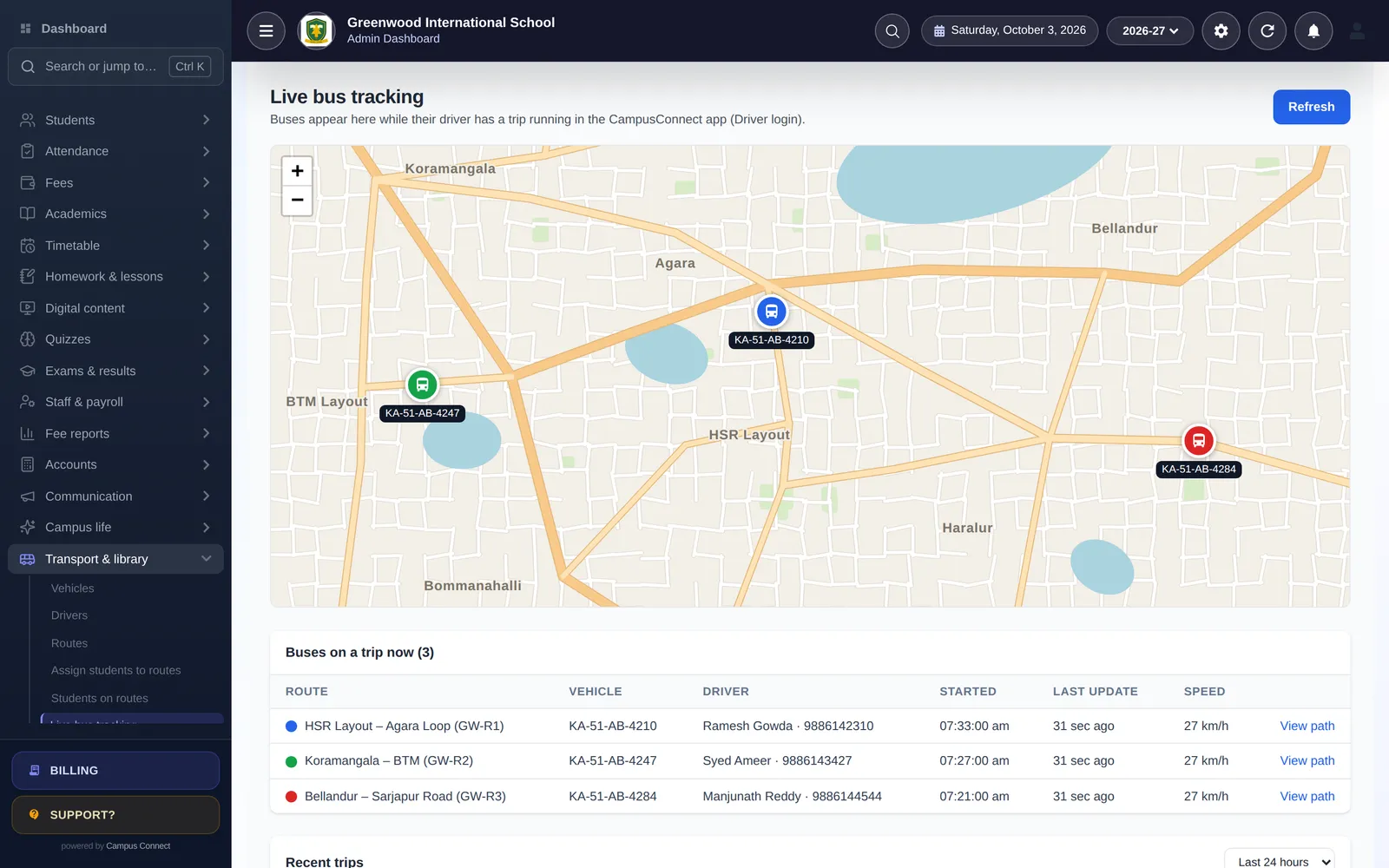
The transport desk sees every bus on a trip on one map, with driver, start time, last update and speed — and can replay recent trips.
Step 3
Parents see their child's bus
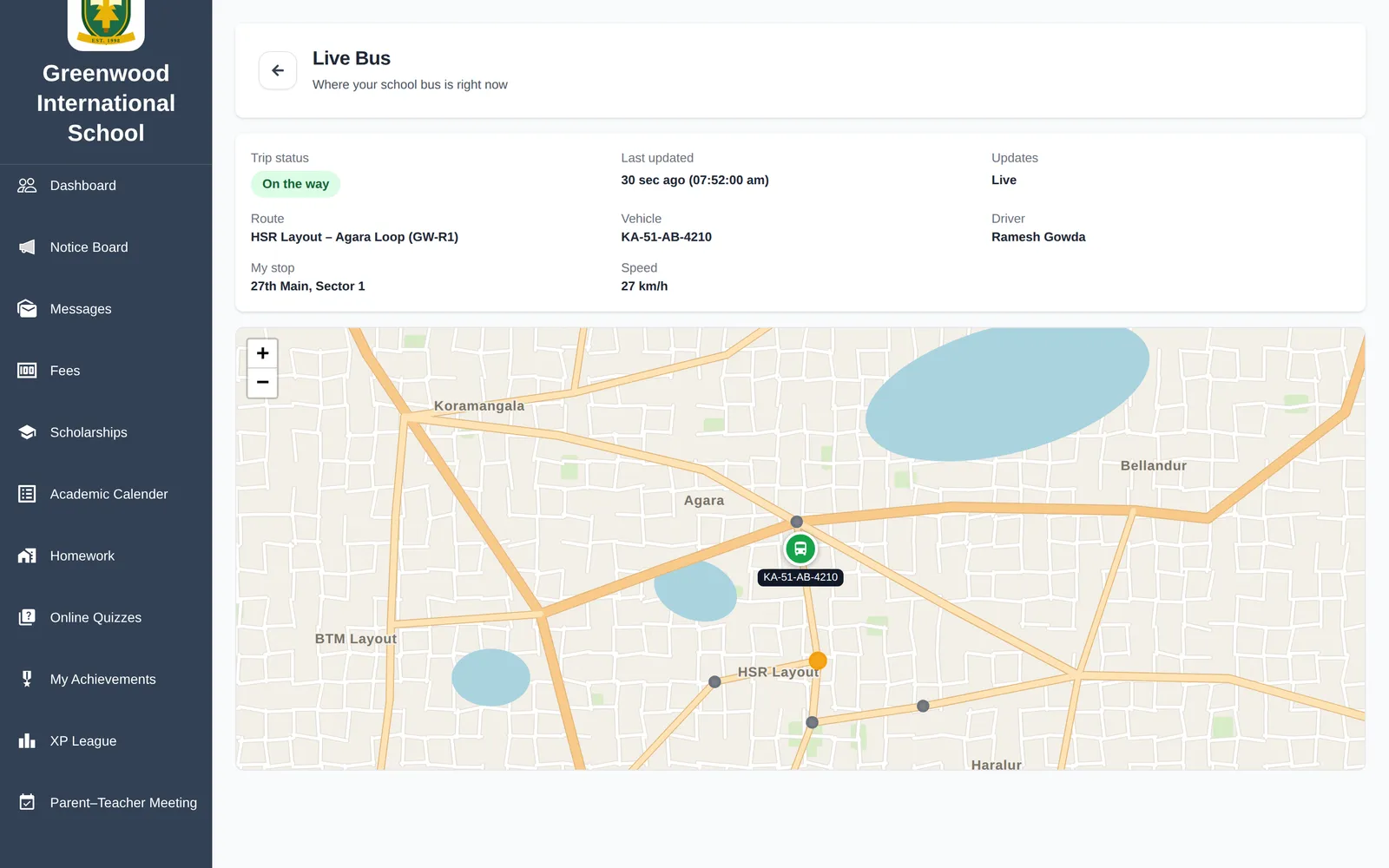
“Where is my bus” shows the school bus live on the map, with route, stop, driver and last update.
One connected journey
Admission → fees → attendance → exams → report card → parent app
Every module shares the same student record — nothing is typed twice.
1Step 1 of 6 · Admission
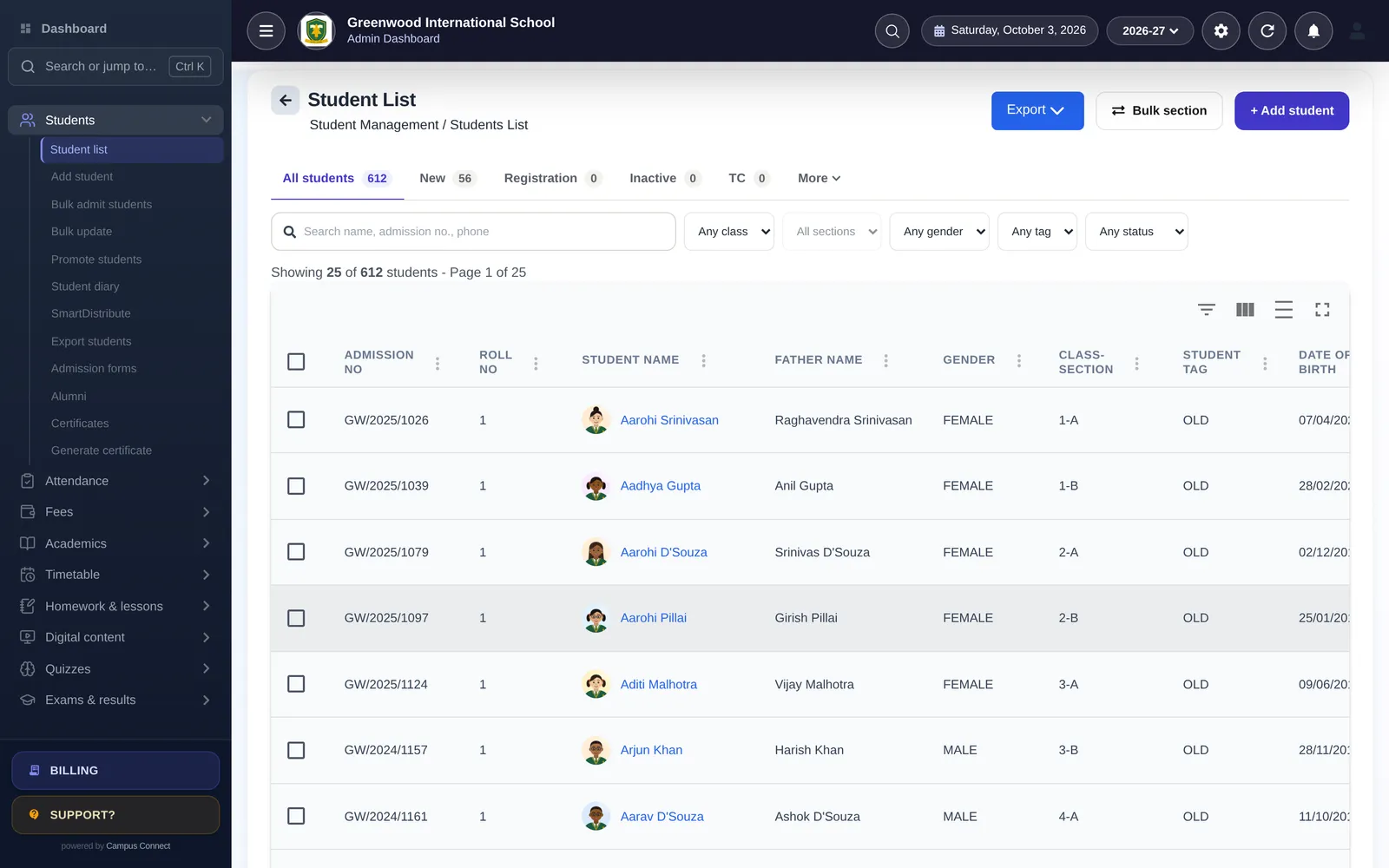
A new student joins
The family fills the online admission form — or the office adds the student, or bulk-admits a whole class from Excel. A Student 360 profile is created once and used everywhere.
- Online admission forms and admission fees
- Bulk admit and bulk update from Excel
- Student 360: one profile for every module
2Step 2 of 6 · Fee collection
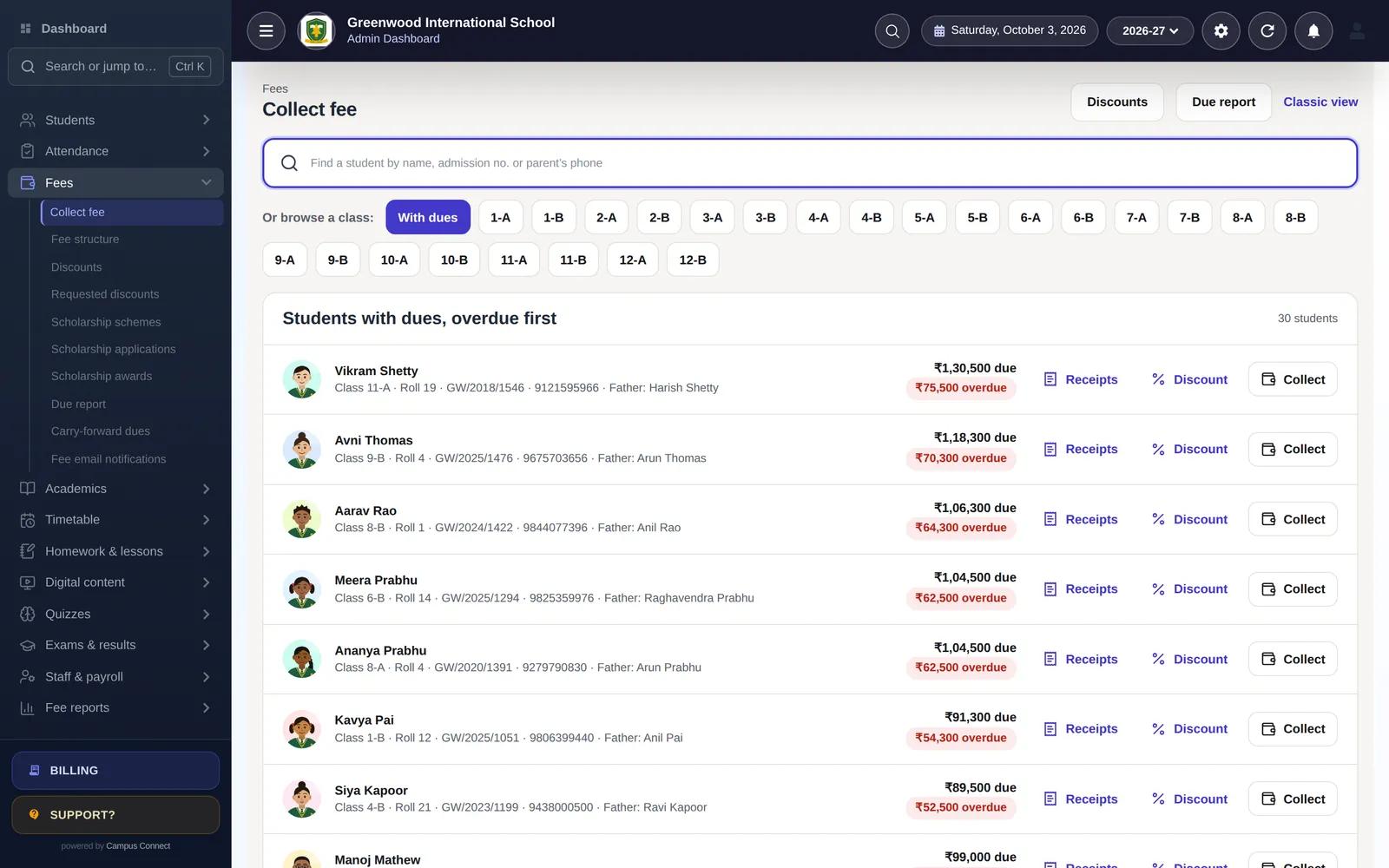
Fees are set up and collected
The class fee structure applies automatically. Parents see what is due in the app and pay online; the receipt is generated instantly and the payment lands in your fee reports and accounts.
- Fee heads, installments, fines and concessions
- Online payment in the parent app
- Receipts, due reports and daybook update instantly
3Step 3 of 6 · Attendance
Attendance is marked in seconds
Teachers mark the class on the web or the staff app — or attendance comes in from biometric/RFID devices. Parents with the app are notified when attendance is saved.
- Card-based marking with keyboard shortcuts
- Biometric / RFID device integration
- Monthly reports by class, student and staff
4Step 4 of 6 · Exams & marks
IllustrationMarks entry · Term 1 · Mathematics
Class 5-A| Student | Max | Marks | Grade |
|---|---|---|---|
| Aarav Kumar | 100 | 92 | A1 |
| Diya Patel | 100 | 88 | A2 |
| Kabir Singh | 100 | 76 | B1 |
| Meera Iyer | 100 | 95 | A1 |
Exams are scheduled and marks entered
Set up exam heads and schedules, issue admit cards and let each subject teacher enter marks — with grades and co-scholastic areas.
- Exam heads, schedules and admit cards
- Subject-wise marks entry by teachers
- Grades and co-scholastic areas
5Step 5 of 6 · Report card
IllustrationGreenfield Public School
Report card · Term 1
Aarav Kumar · Class 5-A · Roll 1
- EnglishA1
- MathematicsA1
- EVS / ScienceA2
- HindiB1
- ComputerA1
Behaviour & skills
Excellent
Attendance
Shown from records
Results and report cards are published
Configurable result tables turn marks into printable report cards. Once you publish, results appear for students and parents in the app.
- Configurable result tables
- Printable report cards
- Results visible in the app once published
6Step 6 of 6 · Parent app
- Attendance savedAarav is marked Present today.
- Receipt readyExam fee paid online — receipt is in the app.
- New notice from schoolParent–teacher meeting slots are open. Book a time.
Parents stay in the loop
Attendance, fees and receipts, notices, homework, results, meetings and the live school bus — everything the school records shows up in the parent app.
- Notified when attendance is saved
- Push notifications for notices
- Receipts, results and homework in one app
Get started
Want the guided version?
A personalised demo with the modules that matter to your institution.
- Personalised demo, at a time that suits you
- Help importing your data from Excel
- Training for admins, accountants and teachers
- +91 95382 22239WhatsApp support