
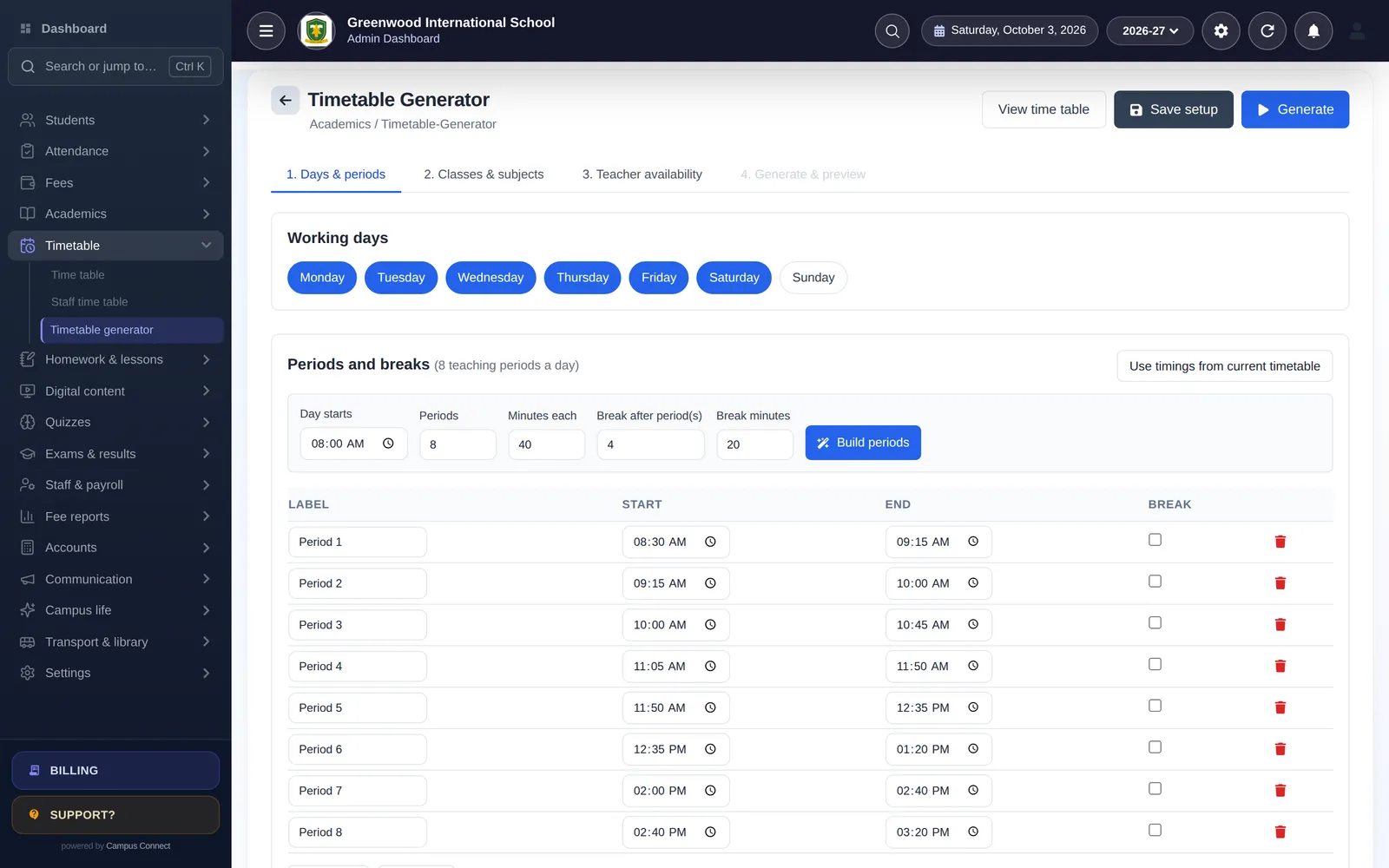
Ask any academic coordinator about their least favourite week of the year, and many will say: the week they build the timetable. A school timetable has to satisfy dozens of constraints at once — every class needs the right number of periods per subject, no teacher can be in two places at the same time, part-time teachers are only available on certain days, labs can only hold one class, and nobody wants a double period that runs across the lunch break.
Doing this by hand on a chart or a spreadsheet takes days, and a single change — a teacher leaving mid-year — can unravel the whole thing. This article explains why timetabling is hard and how automation helps.
Why timetabling is hard
A timetable is a puzzle where every piece affects every other piece. Consider a school with 20 sections, 8 periods a day, 6 days a week and 40 teachers. Each section needs a specific number of periods of each subject each week; each teacher teaches particular subjects to particular sections; and each slot can hold only one class per teacher.
Even a small change ripples outward. Move one Maths period for Class 7-A and you may create a clash for the Maths teacher, which forces a change in Class 8-B, which creates a new clash for the Science teacher, and so on. That’s why manual timetables often end up “good enough” rather than good — and why they’re so painful to change.
The rules that matter
Before building a timetable — by hand or by software — write down your rules. Typical ones are:
Hard rules (must never be broken):
- A teacher can’t teach two classes in the same period.
- A class can’t have two subjects in the same period.
- Each class gets its required number of periods per subject per week.
- Teachers are only scheduled when they’re available.
Soft rules (preferences):
- No more than a set number of periods of the same subject per day for a class.
- No more than a set number of teaching periods per day for a teacher.
- Double periods for practical subjects, but never across a break.
- Spread subjects across the week rather than bunching them.
The clearer your rules, the better the result.
How an automatic generator works
A timetable generator takes your inputs — working days, periods, breaks, classes, subjects, which teacher teaches what, and teacher availability — and searches for an arrangement that satisfies every hard rule and as many soft rules as possible. It does in minutes what takes people days, and it can be re-run whenever something changes.
Good generators let you:
- Define the week: working days, periods per day, and breaks.
- Set the workload: for each class, which subjects and how many periods per week, and which teacher takes each.
- Mark availability: for each teacher, when they can and can’t teach.
- Set limits: maximum periods per day per subject and per teacher.
- Preview the generated timetable before publishing, and adjust if needed.
Practical tips
- Get the data right first. Most timetable problems are data problems: a subject allocated to the wrong teacher, or a class with more periods required than slots available. Check totals before generating.
- Be realistic about availability. If a teacher is marked available only two days a week but teaches twelve periods, there may be no valid solution.
- Start with the hardest constraints. Shared teachers, part-time staff and labs are where clashes come from.
- Generate, review, then publish. Look at the result with heads of department before sharing it.
- Keep the rules documented. Next year’s timetable will be much faster.
When something changes mid-year
A teacher leaves, a new section opens, a subject’s periods change. With a manual timetable, this can mean days of rework. With a generator, you update the inputs and generate again, then compare the new timetable with the old one and publish. Some schools prefer to make small manual swaps for minor changes and regenerate only for major ones — either way, you’re no longer starting from scratch.
Sharing the timetable
A timetable is only useful if people can see it. Teachers need their own timetable; students and parents need the class timetable. When it’s published in the school’s app and web system, everyone sees the current version — no outdated printouts on the notice board.
A worked example
A mid-sized school with two sections per class from Class 1 to 10 decides to automate. The academic coordinator spends a morning entering the week (six days, eight periods, a short break after the third period and lunch after the fifth), the subject allocation for each section, and each teacher’s availability — including two part-time teachers who come only three days a week. She sets limits of two periods per day per subject and six teaching periods per day per teacher, and asks for double periods for Science practicals in senior classes.
The first generation fails to place every period: the data shows that one part-time teacher has been allocated more periods than her available slots. The coordinator moves two sections to another teacher and generates again. This time every hard rule is met. She reviews the result with heads of department, swaps two periods to suit a lab schedule, and publishes. What used to take most of a week is done before lunch on the second day — and when a teacher leaves in November, the update takes an afternoon.
How CampusConnect helps
CampusConnect’s automatic timetable generator walks you through days and periods (with breaks), classes and subjects, and teacher availability, then previews a timetable in which no teacher is ever in two classes at once. You can set rules such as the maximum periods per day per subject and per teacher, and double periods never run across a break. Class and staff timetables are then visible to students, parents and teachers, and school admins can run the generator from the mobile app too.
Book a free demo to see the timetable generator with your school’s structure.