
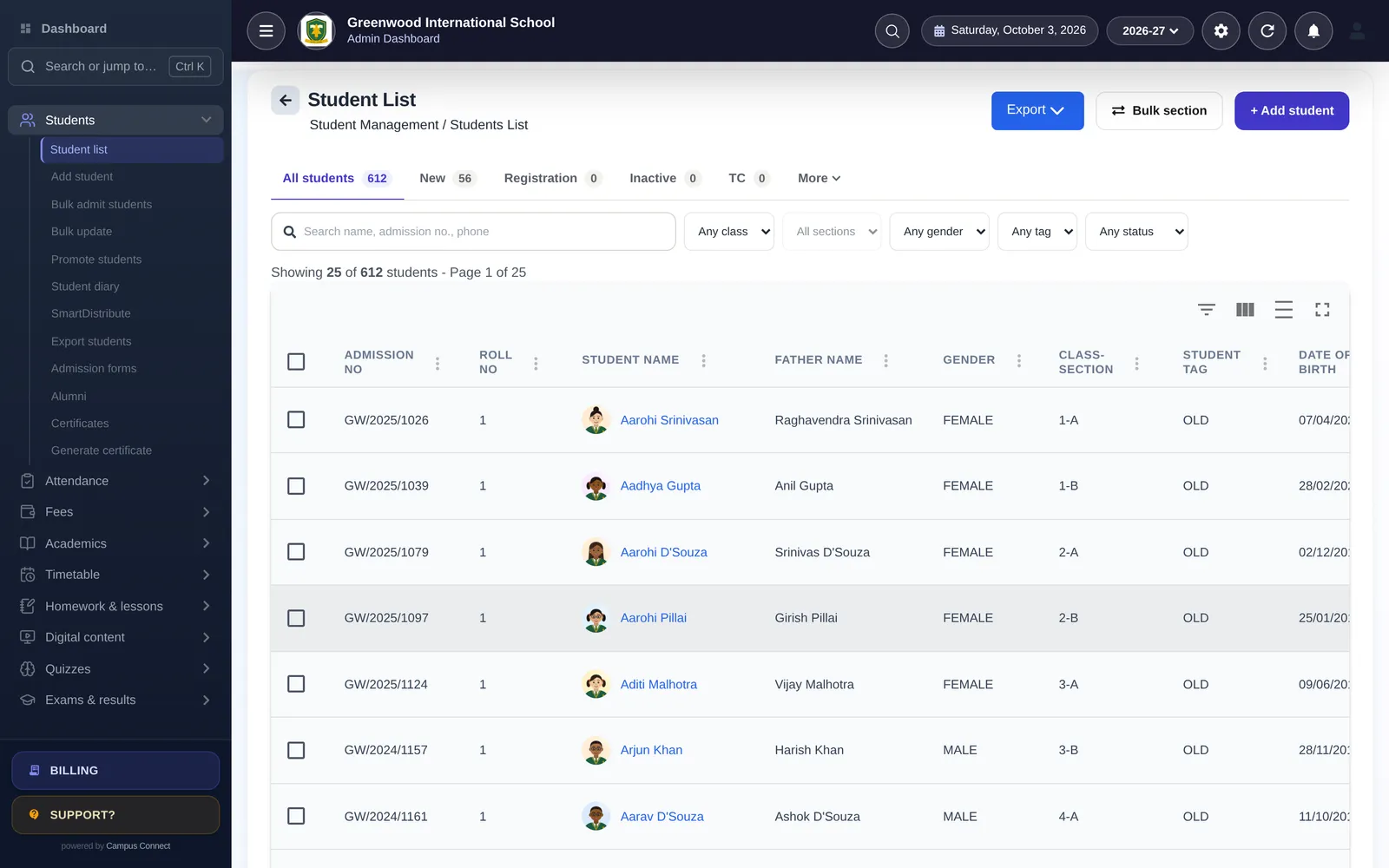
Excel is the most widely used school management tool in India. It’s flexible, everyone knows it, and it costs nothing extra. Many schools run admissions, fees and even report cards on spreadsheets for years. But as a school grows, the cracks show: multiple versions of the same file, formulas that break, no way for parents to see their information, and hours spent copying data between sheets.
Moving to school management software is a big step, and the data migration is where many schools worry most. This article explains how to do it cleanly.
Decide what to migrate
Not everything in your spreadsheets needs to move. Focus on:
- Current students — the full, accurate list.
- Staff — current employees with roles.
- Fee structure for the current session.
- Fees paid in the current session.
- Pending dues from earlier sessions.
Consider carefully before migrating:
- Detailed history from many years ago. Keep old files archived and accessible, but you may not need every past receipt in the new system.
- Students who have left. Migrate them only if you need their records in the system (for example, for certificates or alumni lists).
Find the key that links everything
In a spreadsheet world, students are often identified by name — which fails when two students share a name or a name is spelled differently in two files. In the new system, the admission number is usually the key that links a student to their fees, attendance and results.
Before migrating, make sure:
- Every student has a unique admission number.
- The same number is used in every file (student list, fee sheet, dues sheet).
- There are no duplicates.
Time spent here saves the most trouble later.
Clean the data
A checklist for each spreadsheet:
- One header row; no merged cells.
- One row per record.
- Dates in one format.
- Amounts as plain numbers, without currency symbols or text.
- Class and section names consistent (“5-A” everywhere, not “5A”, “V A” and “Class 5 A”).
- Phone numbers complete and in one format.
- No colour-coding that carries meaning — add a column instead.
Migrate in stages
- Classes and sections in the new system.
- Students, imported in bulk.
- Fee structure set up in the system.
- Fee master (if fees were set per student).
- Fees paid this session.
- Pending dues from earlier sessions.
- Staff.
After each stage, check before moving on.
Check, then check again
For each import:
- Compare counts — students per class, receipts per month.
- Compare totals — fees collected, dues outstanding.
- Spot-check individual records, including tricky cases.
Ask the people who know the data best — the class teacher for student details, the accountant for fees — to review.
Plan the cut-over
Pick a date after which all new work happens in the new system. Communicate it to everyone. Keep the old spreadsheets read-only for reference: rename them with “ARCHIVE” and the date, and store them somewhere safe with restricted access.
What you gain
Once data is in one connected system:
- Fees, attendance and results all refer to the same student record.
- Parents see their own information in an app.
- Reports are instant rather than built by hand.
- Fewer files means fewer versions and fewer mistakes.
- Access can be controlled by role, and important actions are logged.
Mistakes to avoid
- Migrating messy data as-is. Problems move with it.
- Skipping the check. A wrong balance on a parent’s screen costs trust.
- Running both systems in parallel for months. People drift back to the spreadsheet.
- Doing it all at once. Stages make problems easy to find.
A note on spreadsheets you’ll keep
Moving to software doesn’t mean abandoning Excel. You’ll still export lists and reports to Excel for analysis, sharing with management or giving to your auditor. The difference is that the spreadsheet becomes a view of the data, not the place where the data lives. That one change — a single source of truth — is what removes most of the errors schools experience with spreadsheets: different versions on different computers, formulas that someone overwrote, and totals that don’t match between the fee sheet and the dues sheet.
More questions
How much history should we bring across? Usually the current session in full and outstanding dues from earlier sessions. Older detail can stay in archived spreadsheets that remain available for reference.
What if our spreadsheets are messy? Most are. Share what you have with your vendor’s onboarding team and fix the key issues — unique admission numbers, consistent class names, plain-number amounts — before importing.
Key takeaways
- Migrate current students, staff, this session’s fees and outstanding dues.
- Make the admission number the unique key in every file.
- Clean data before importing and import in stages.
- Check counts and totals after every stage.
- Archive old spreadsheets read-only after the cut-over.
How CampusConnect helps
CampusConnect has import tools for each stage: bulk-admit and bulk-update students from Excel, and separate imports for fee masters, fee records and due records — each with a list of imported records so you can check them. Our onboarding team helps map your spreadsheets and verify totals. Lists and reports can be exported back to Excel or PDF whenever you need them. Read our step-by-step guide to moving fee records from Excel.
Book a free demo and bring a sample of your spreadsheets.