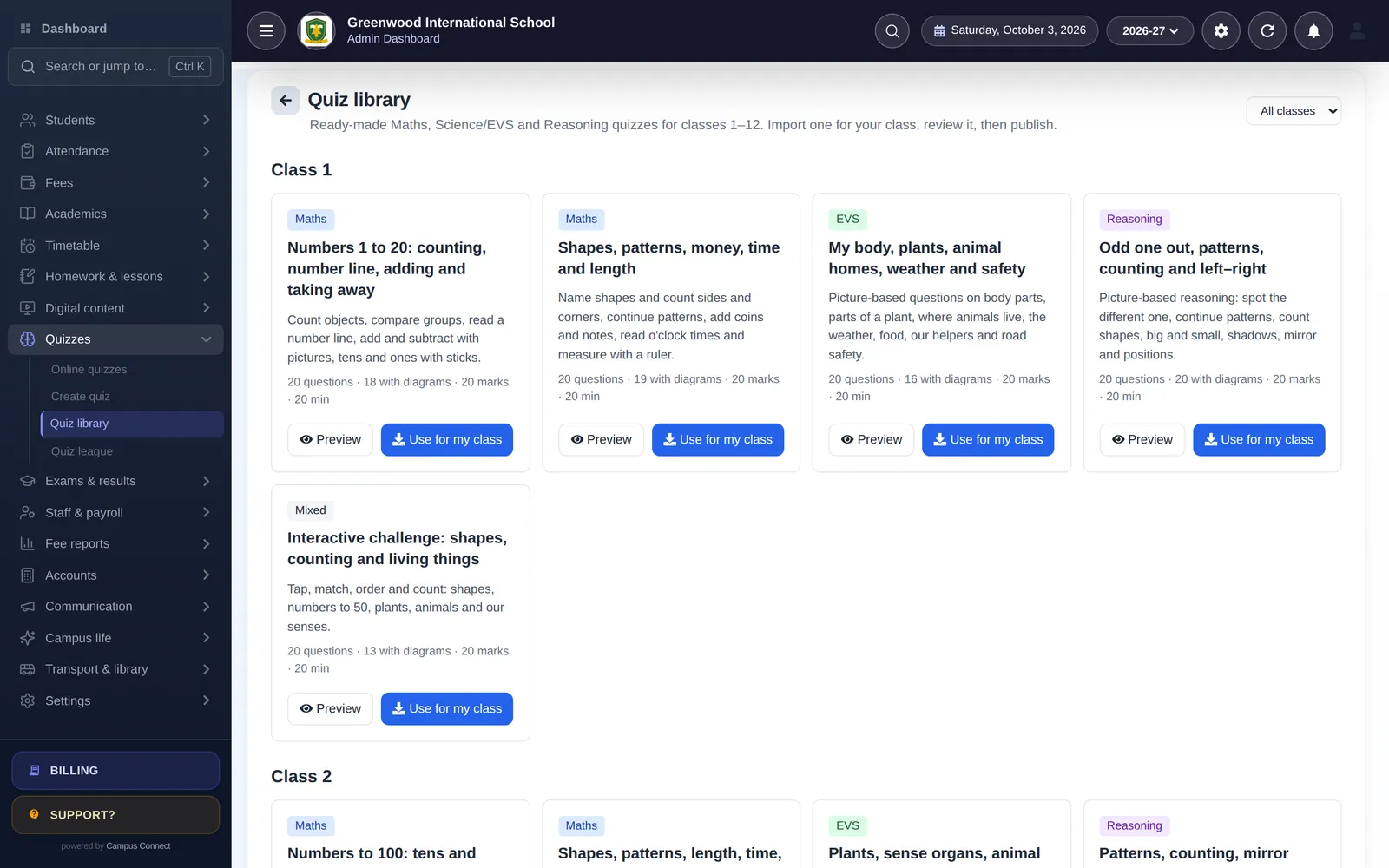
CampusConnect includes a library of 60 ready-made quiz sets for classes 1–12 in Maths, Science/EVS, Reasoning and interactive challenges. Each set has 20 questions, and most questions come with a diagram. Teachers can use a set as it is, edit it, or write their own quizzes from scratch. This guide shows how to run your first quiz and how to get the most from the results.
Step 1: find a set in the library
- In the web app, open Quizzes → Quiz library (teachers can also open the library in the CampusConnect Pro app).
- Filter by class. Each card shows the subject, number of questions, how many have diagrams, the marks and the suggested time.
- Click Preview to see every question with its diagram and answer before you decide.
Choose a set that matches what the class has just learned. A quiz works best as quick practice a day or two after a topic is taught, not weeks later.
Step 2: import it for your class
Click Use for my class. CampusConnect creates a draft quiz for your class with all the questions. Because it’s a draft, nothing is visible to students yet. You can:
- Remove questions you haven’t covered.
- Change marks or the time limit.
- Add your own questions — multiple choice, tap on the diagram, match the pairs, put in order or number answer.
Step 3: choose how results are shown
Decide whether students see instant feedback after each question (with the explanation) or their results after the quiz closes.
- Instant feedback is best for practice: students learn from each mistake immediately.
- Results after closing are better for a test where you don’t want answers to spread while the quiz is open.
Step 4: schedule and publish
Set an open time and a close time. Students see the quiz in the app under Online Quiz while it is open. A window of a day or two works well for homework practice; a short window suits an in-class activity.
Publish, and tell the class — a notice or a line in the homework is enough.
Step 5: read the results
After students finish, open the quiz’s results:
- Questions most students got wrong are your re-teaching list for the next class.
- Students who didn’t attempt may need a reminder or may not have app access at home.
- Time taken helps you judge whether the time limit was right.
Using XP, badges and the House Cup well
Every quiz a student finishes earns XP — for the score, stars, answering correctly in a row, speed and the first quiz of the day. Students level up, unlock badges and keep streaks. Admins control these settings in Quizzes → Quiz league:
- XP league can show names, be anonymous, or be switched off. For younger classes, or if competition worries you, choose anonymous or off.
- House Cup compares sections on XP per student, so a small section has the same chance as a big one.
A few tips from schools that use gamification well:
- Celebrate effort, not just rank: mention streaks and personal level-ups in assembly.
- Keep quizzes short and frequent rather than long and rare.
- Use the House Cup for friendly section-vs-section motivation in a month with exams.
Writing your own questions
When you add your own questions, mix the types: a “tap on the diagram” question checks understanding differently from a multiple-choice one, and “put in order” works well for processes and sequences. Add a one-line explanation to every question — it’s what students read when they get it wrong.
Checklist
- Set chosen to match the topic just taught.
- Imported as a draft and reviewed.
- Feedback mode decided.
- Open and close times set; class told.
- Results reviewed and wrong-answer questions re-taught.
Want to see the library with your own classes? Book a demo.